End User Instructions to Allow Access
Chrome versions v142 to v144
If you are prompted that the CSG Forte product “wants to look for and connect to any device on your local network”, click Allow. CSG Forte communicates only with your device and does not access other devices on your local network.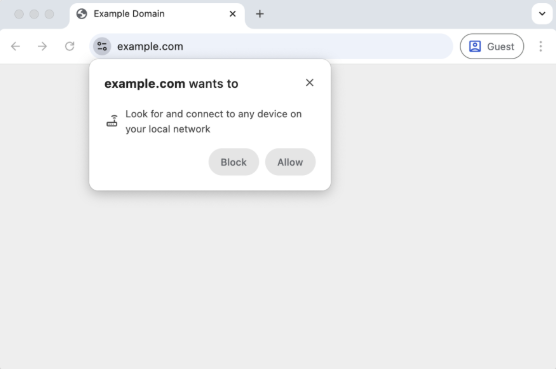
Chrome versions v145 and the latest
If you are prompted that the CSG Forte product “wants to access other apps and services on this device”, click Allow. CSG Forte communicates only with your device and does not access other devices on your local network. 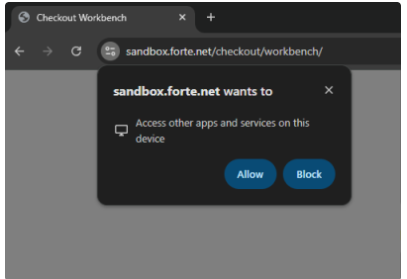
Edge versions v142 to v144
If you are prompted that the CSG Forte product “wants to look for and connect to any device on your local network”, click Allow. CSG Forte communicates only with your device and does not access other devices on your local network. 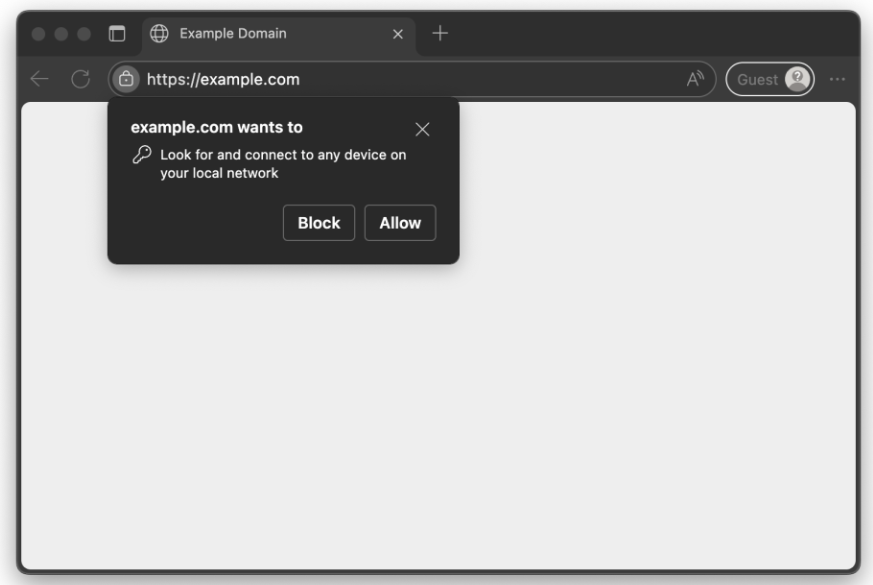
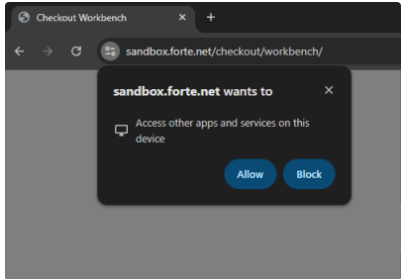
Edge versions v145 and the latest
If the user is seeing the prompt for the first time, they can click “Allow”.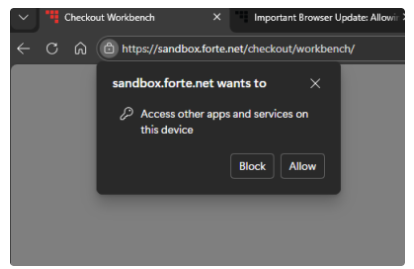
Firefox - Newer Versions
No pop-up will be seen for any device. However, if you are using a V400c terminal, you will need to update the Device Handler. Contact Technical Support or use the updated Device Handler download located in our Dev Docs under Downloads.
End User Instructions to Unblock Access
Chrome versions v142 to v144
If the user has already blocked the access, they can click on the site settings and click on “Reset Permission” for the prompt to appear again, or use the "Local network access" toggle button to allow access. You will need to "Reload" the payment page.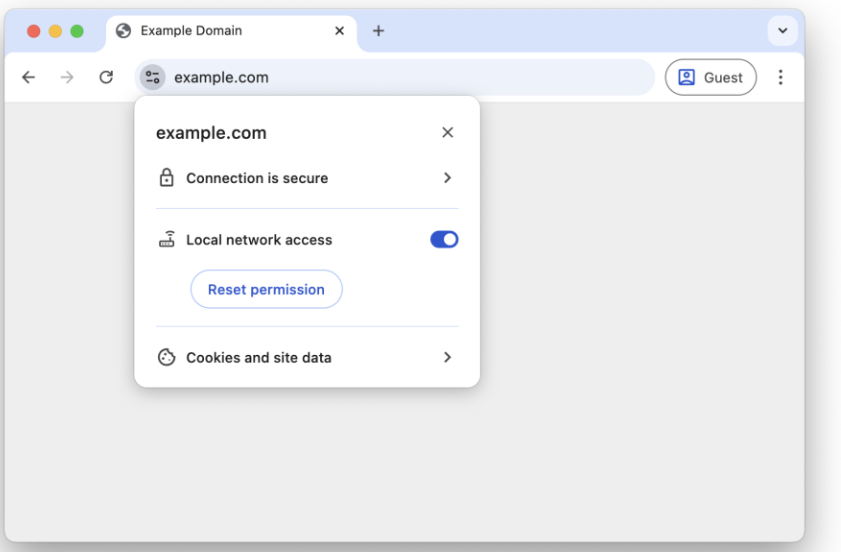
They can also always navigate to the browser settings → Privacy and security → Site settings → Select the website from which they are trying to access the device → Scroll down to “Local Network Access” → Select “Allow” from the drop-down.
See below for a quick video with step-by-step instructions.
Chrome versions v145 and the latest
If the user has already blocked the access, they can click on the site settings and click on “Reset Permission” for the prompt to appear again. 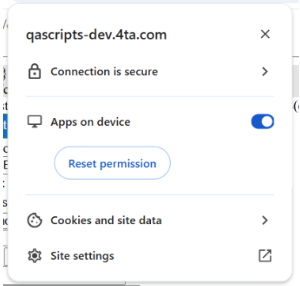
They can also always navigate to the browser settings → Privacy and security → Site settings → Select the website from which they are trying to access the device → Scroll down to “Apps on Device” → Select “Allow” from the drop-down.
Edge versions v142 to v144
If the user has already blocked the access, they can click on the site settings and change “Local network access” to “Allowed" and “Refresh” the payment page to allow access, or change “Local network access” to “Ask" and “Refresh” the payment page for the prompt to appear again. 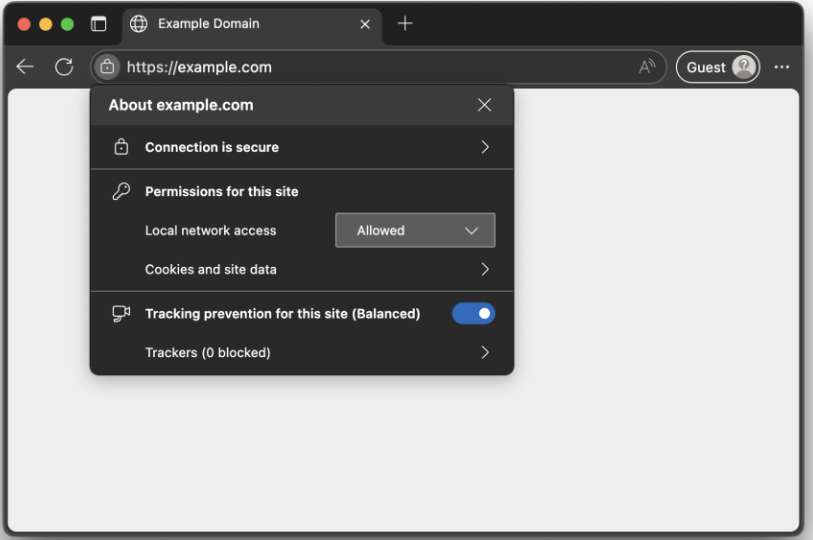
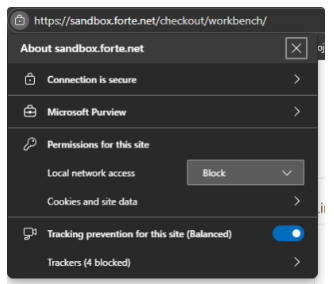
They can also always navigate to the browser settings → Privacy and security → Site settings → Select the website from which they are trying to access the device → Scroll down to “Local Network Access” → Select “Allow” from the drop-down.
Edge versions v145 and the latest
If the user has already blocked the access, they can click on the site settings and change “Apps on Device” to “Allowed" and “Reset Permissions” to refresh the payment page. 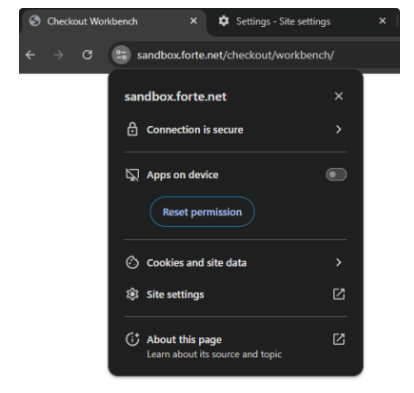
They can also always navigate to the browser settings → Privacy and security → Site settings → Select the website from which they are trying to access the device → Scroll down to “Apps on Device” → Select “Allow” from the drop-down.
Was this article helpful?
That’s Great!
Thank you for your feedback
Sorry! We couldn't be helpful
Thank you for your feedback
Feedback sent
We appreciate your effort and will try to fix the article